
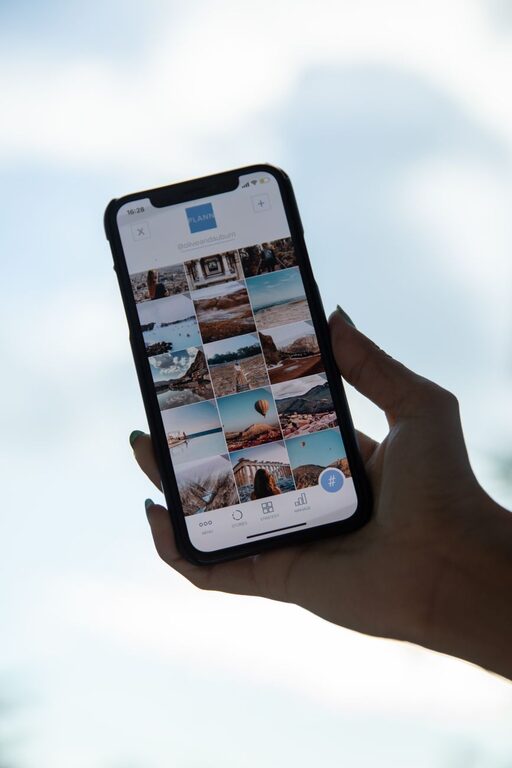
Taking photos on your phone is easy. Finding a specific photo months or years later can be much harder. Screenshots, downloads, duplicates, receipts, travel pictures, and everyday moments can quickly create a crowded photo library.
The good news is that you do not need to organize every image perfectly. A few simple habits can make your library easier to browse and help you find important memories faster.
Start With a Quick Photo Cleanup
Before creating albums or changing settings, remove the images you no longer need. A smaller library is easier to organize and search.
Set aside a short amount of time for a basic cleanup. You do not have to finish everything in one session. Even 10 or 15 minutes can make a difference.
Delete obvious clutter
Begin with photos that are easy to identify as unnecessary, such as:
– Blurry images
– Accidental photos
– Duplicate pictures
– Screenshots you no longer need
– Old shopping receipts
– Temporary images downloaded from messages
– Photos of notes that have already been saved elsewhere
Many phone photo apps include a section for recently deleted items. Check it after your cleanup if you need to recover something. Otherwise, emptying it can help free storage space.
Review large files and videos
Videos often take up more space than photos. Look for long clips, repeated recordings, or videos you no longer plan to watch.
Some photo apps can sort media by file size or show storage recommendations. If your phone offers this feature, use it to find the largest items first.
Use Albums for Important Groups
Albums are one of the easiest ways to organize photos. They let you collect related images without changing the date or location information attached to each file.
Create albums based on how you naturally look for memories. Useful examples include:
– Family
– Friends
– Trips
– Holidays
– Pets
– Home projects
– Favorite recipes
– School or work events
– Important documents
Keep album names simple and consistent. For example, use “New York Trip 2025” instead of several similar names such as “New York,” “NY photos,” and “Trip pictures.”
Do not create too many albums
Albums are helpful, but creating one for every small event can make your library harder to manage. Start with broad categories and add more specific albums only when they are useful.
You might create one album for a vacation rather than separate albums for every day. If the trip includes a major event, such as a wedding or concert, that event can have its own album.
Mark Your Best Photos as Favorites
The favorites feature is a fast way to separate your most important images from the rest of your library. Use it for photos you regularly want to show, share, or revisit.
Good candidates include:
– Family portraits
– Favorite travel photos
– Pictures of pets
– Special celebrations
– Photos of meaningful places
– Images you may use for a profile or greeting card
Try to choose only the best images. If every photo becomes a favorite, the feature will be less useful. A smaller collection makes it easier to find your highlights.
Take Advantage of Search
Modern phone photo apps can often search by more than file name or date. Depending on your phone and app, you may be able to search for people, places, objects, pets, or activities.
Try using simple search terms such as:
– Beach
– Birthday
– Dog
– Sunset
– Food
– Car
– Hiking
– Screenshots
– Documents
You can also search by month, year, city, or a person’s name if face grouping is available. Search tools may not be perfect, but they can save time when you remember what is in a picture but not when you took it.
Improve results with descriptions
Some photo apps let you add captions or descriptions. This can be helpful for important images that may be difficult to find later.
For example, you could add a description such as:
– “Grandparents anniversary dinner”
– “Kitchen paint colors”
– “Receipt for camping equipment”
– “First day in Seattle”
Use descriptions for photos that matter rather than trying to label everything.
Organize Screenshots and Downloads
Screenshots and downloaded images can quickly fill your main photo view. They are often useful for a short time but may not belong with your personal memories.
Create a regular habit for handling them. Once a week or once a month, review these files and decide whether to:
- Delete them
- Move useful images into an album
- Save important information in a notes or document app
- Share or archive images that you need to keep
Some phones automatically group screenshots, screen recordings, and downloaded media into separate categories. Check these areas during your cleanup so they do not get overlooked.
Add Context to Special Memories
A photo can become more meaningful when you add a little context. For major events, include the date, place, or people involved in the album name or description.
For example, “Family Reunion” is helpful, but “Family Reunion at Lakeview Park, July 2025” is easier to remember later.
You can also create a short note with details such as:
– Who was there
– Where the event took place
– Why it was important
– Favorite moments from the day
This is especially useful for travel photos, family gatherings, and milestones.
Back Up Your Photo Library
Organization helps you find photos, while backup helps you keep them safe. Use a trusted cloud photo service, computer, external drive, or another storage method that fits your needs.
Check that backup is turned on and working. A backup is not very helpful if it stopped months ago or is connected to an account you no longer use.
Before deleting photos from your phone, confirm that they are available in your backup or storage location. Some services synchronize deletions, which means removing a photo from one device may remove it from other connected devices as well.
For especially important memories, consider keeping a second copy in a separate location. This can protect your collection if a device is lost or damaged.
Create a Simple Monthly Routine
A small routine is easier to maintain than a large cleanup once a year. Choose a regular time to review your library.
A monthly routine might include:
1. Delete clutter
Remove accidental shots, duplicates, and temporary screenshots.
2. Review recent photos
Add important images to albums and mark your favorites.
3. Check storage
Look for large videos or items that are already safely backed up.
4. Update important albums
Add new pictures to family, travel, pet, or project albums.
5. Confirm backup
Make sure recent photos have finished uploading or copying.
The goal is not to create a perfect system. The goal is to make your photo library easier to use.
Use Better Habits When Taking Photos
Organization begins when you take the photo. Before pressing the shutter, consider whether you need several nearly identical images. Taking fewer, better photos can reduce cleanup later.
You can also use albums soon after an event while the details are still fresh. After a trip or celebration, spend a few minutes selecting the best pictures and creating an album.
Finally, avoid saving every image that appears in a group chat or social media feed. Save only the pictures you truly want to keep.
Make Your Memories Easier to Enjoy
A well-organized photo library is not just about saving storage space. It helps you revisit the moments that matter without scrolling through thousands of unrelated files.
Start with a quick cleanup, create a few useful albums, mark your best photos, and use search tools whenever possible. With a simple monthly routine, your phone can become a convenient collection of memories instead of a confusing stream of images.